Skip to content
  • Home
  • About
  • Twtter
  • RSS
  • LinkedIn

Searching for Bob

Search, Information, Architecture and Technology

Month: January 2019

Enterprise Metadata Tagging – Demo

January 19, 2019January 19, 2019 Bob Bachand3 Comments

This is the last of four blog post about how we implemented a complex metadata mapping strategy within our enterprise. I was inspired to write these posts to help others use BA Insight metadata tagging products with SharePoint and SQL content. The internet does not have much out there to help people like us walk through real world scenarios on how these tools work together to create a desired solution.

Series of posts describing the Enterprise Metadata Tagging project:

  • Enterprise Metadata Tagging – The Requirements
  • Enterprise Metadata Tagging – The Setup
  • Enterprise Metadata Tagging – The Implementation
  • Enterprise Metadata Tagging – The Demo [This one]

This post will concentrate on content source crawls and a demo which proves what we have done works.  At the end I have a few troubleshoot tips I learned but first lets walk through this prototype BA Insight demo’s content sources.

Content Sources and Crawls

Here is a list of the four content sources used in this prototype demo. They were described in a bit more detail in the Setup post with the first three being SharePoint content and the last SQL data.

All four sources were crawled with the full crawl status as full the success numbers:
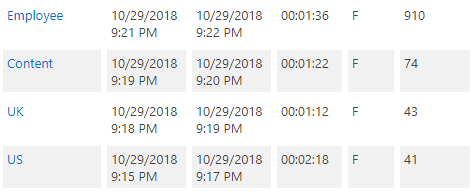
So now we can take a look at the documents and how they are tagged.

Demo through the Use Cases

This use case was not be tested for this prototype because of resource constraints.

Use Case – Allow for current metadata tagging process to occur simultaneously through the Content Enrichment Web Service (CEWS) – We have a metadata process in which we will need to have continue after this new process is implemented.

These use cases are proven in the following tests.

Use Case – Tag content to the enterprise taxonomy using the SharePoint and BA Insight SQL connectors – We use the OOTB SharePoint connector and many of the BA Insight connectors but the prototype will only use these two.

Use Case – Tag content from application document properties to enterprise taxonomy properties – Identify and tag the application content correctly.

Static tagging tests

1. Using the “contentsource” managed property to tag to the Enterprise Application Id (EntApplicationId) managed property.

Query for ‘EntApplicationId:Content’ to show success
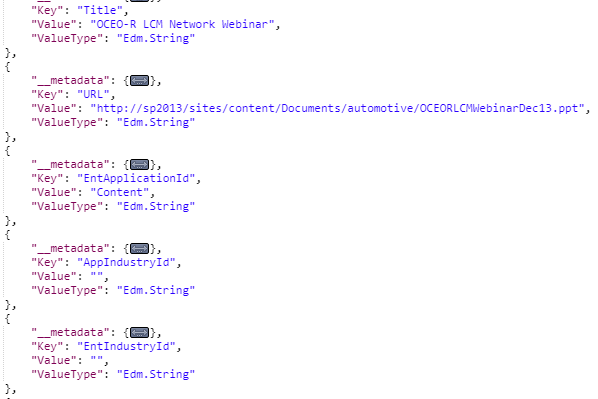
“RowCount”: 34

Query for ‘EntApplicationId:US’ to show success
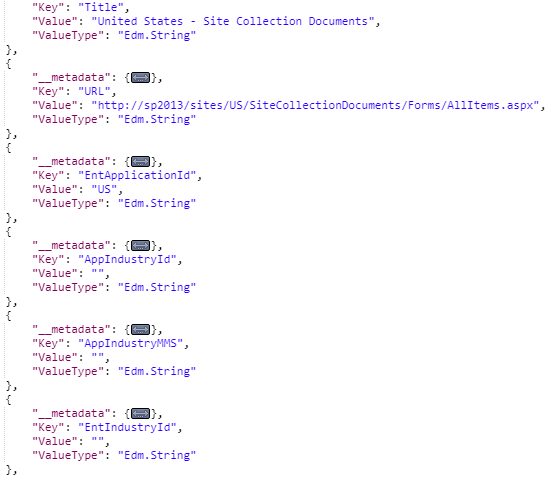
“RowCount”: 19

Query for ‘EntApplicationId:UK’ to show success
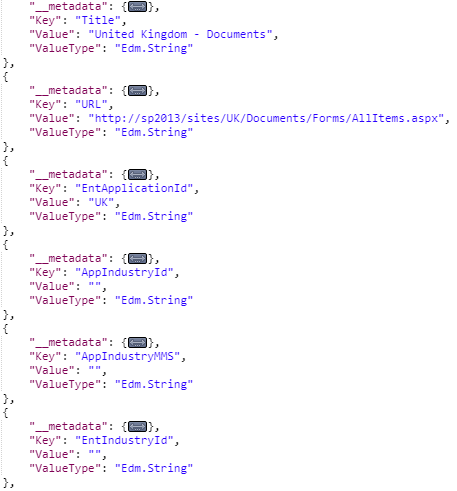
“RowCount”: 20

Meets this use case test

Use Case – Tag content to enterprise taxonomy by application using document properties – Use the contentsource property to tag content to the correct application Id.

2. Using the URL fragment to tag to the Enterprise Application Id (EntApplicationId) managed property.

Query for EntApplicationId:MnA to show success
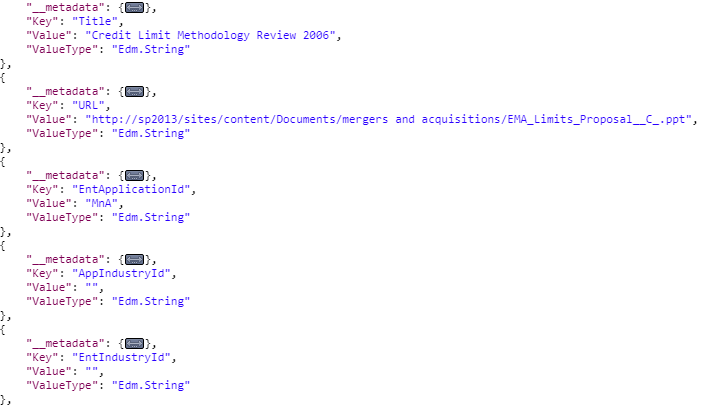
“RowCount”: 19

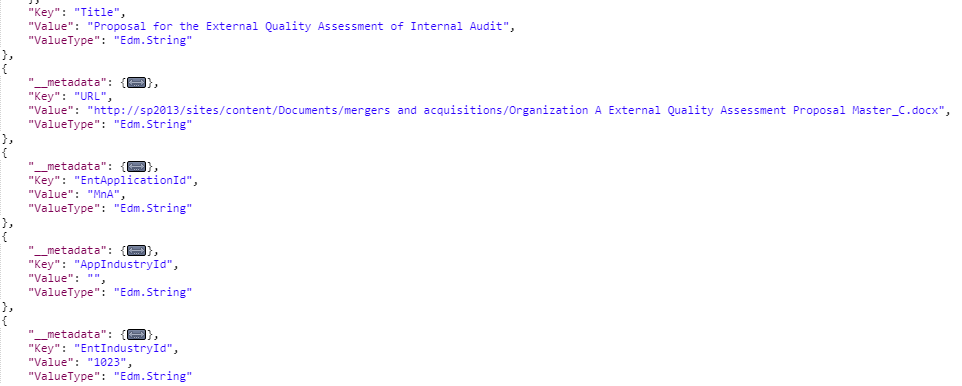
3. Using the URL fragment to tag to the Enterprise Taxonomy Id ( AppIndustryId) managed property.

Query for EntApplicationId:Content AND EntIndustryId:2069 [Automotive] to show success
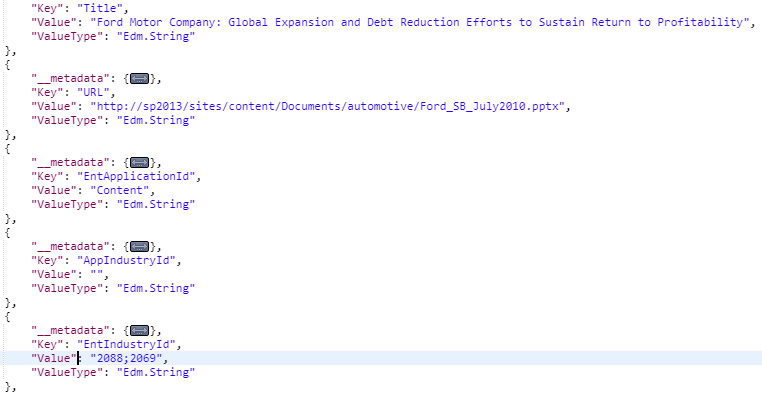
“RowCount”: 11

Query for EntApplicationId:Content AND EntIndustryId:2090 [Transportation Hospitality and Services] to show success
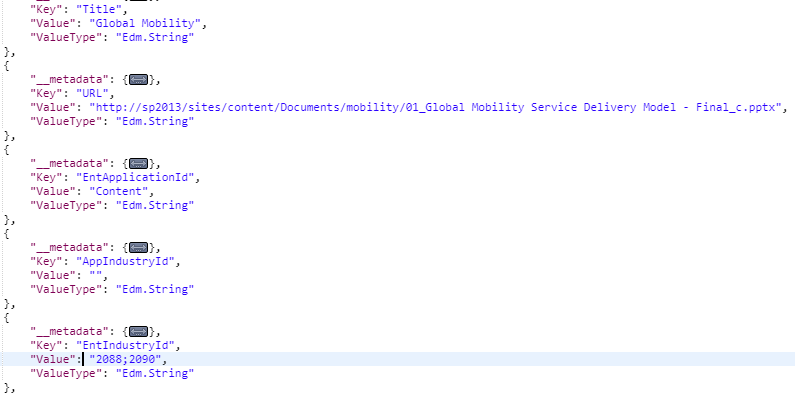
“RowCount”: 12

Meets this use case test

Use Case – Tag content to enterprise taxonomy by application using URL fragments – Use the documents path property to tag to the desired industry or application taxonomy.

4. Tagging applications to a taxonomy when a property is not available or known for mapping – MnA app tagging industry from the Title property.

Query for EntApplicationId:Content AND (EntIndustryId:1023 OR EntIndustryId:1001) to show success
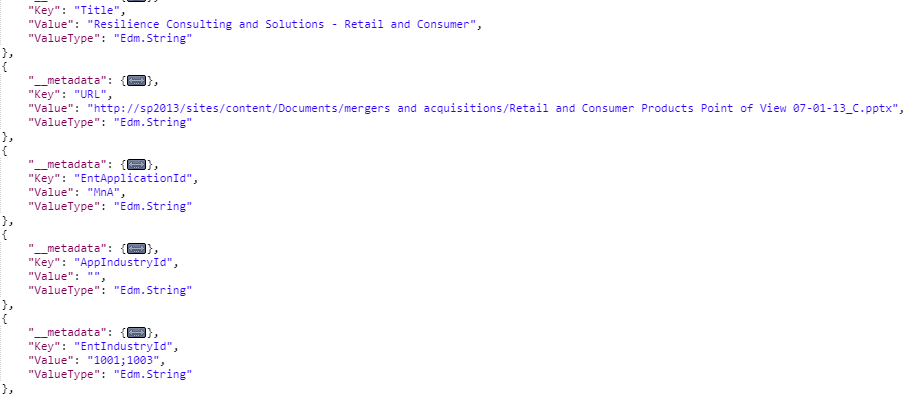
“RowCount”: 2

Meets this use case test

Use Case – If content is not present in a specific application document property use an alternative property for tagging to enterprise taxonomy – Use a predefined alternate property to identify the correct taxonomy to tag a document to.

Dynamic tagging tests

For SharePoint Sources

5. Show how tagging is from application to enterprise taxonomies: UK content source From Central Government [16024361] to Civil Government [2165]

Query for EntApplicationId:UK AND EntIndustryId:2165  to show success

“RowCount”: 1

From Retail [16024432] to Consumer [2088]

Query for EntApplicationId:UK AND EntIndustryId:2088  to show success
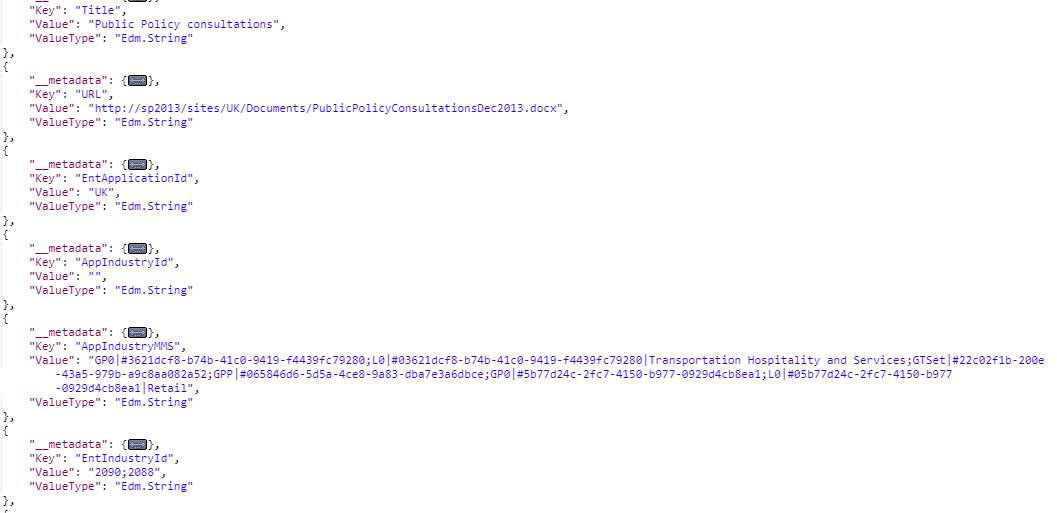
“RowCount”: 1

6. Show how tagging is at each level of taxonomy: US content source At Financial Services [2111]

Query for EntApplicationId:US AND EntIndustryId:2111  to show success
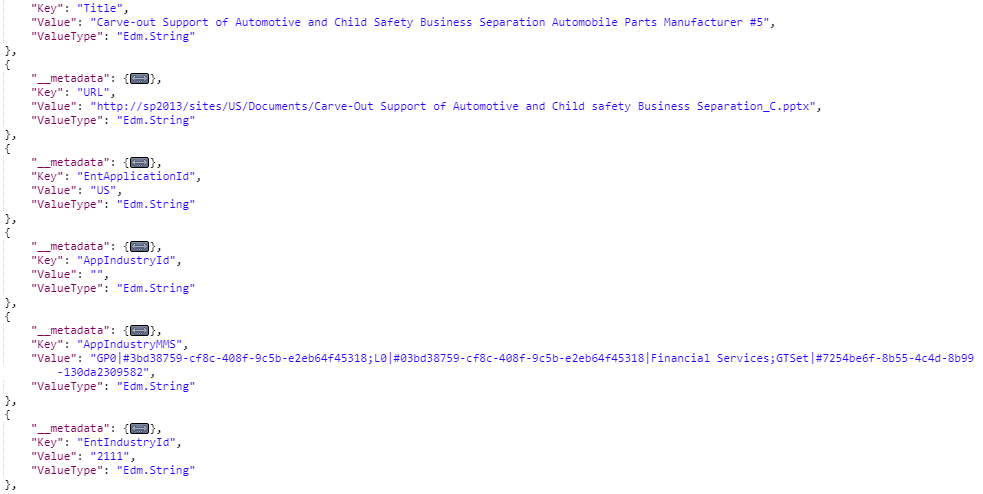
“RowCount”: 1

At Technology [2185] and Technology Media and Telecom [47886903]

Query for EntApplicationId:UK AND EntIndustryId:47886903 to show success
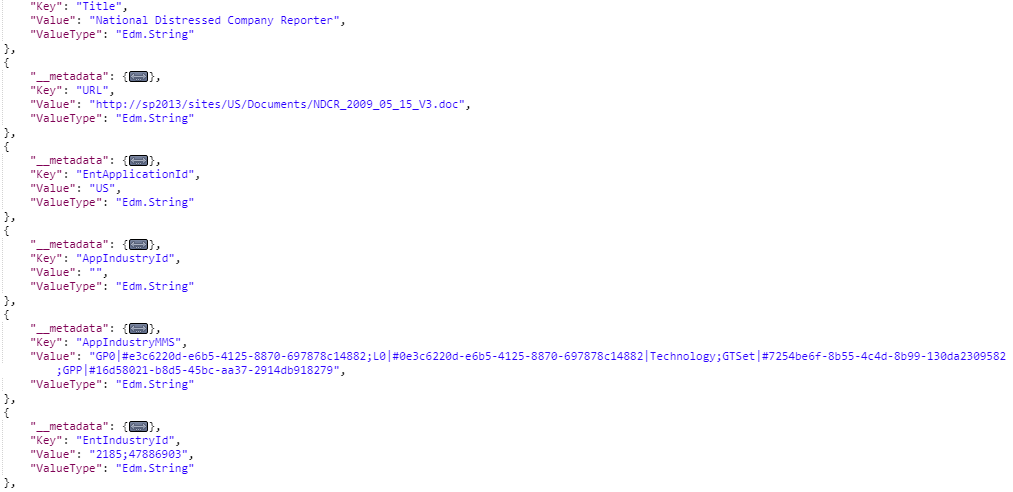
“RowCount”: 1

7. Show multiple industry tagging: UK content source Find FormMustFollow document – Energy and Resources [48083419 -> 2109] and Financial Services [2111]

Query for EntApplicationId:US AND Title:FormMustFollow to show success

“RowCount”: 1

At Technology [2185] and Technology Media and Telecom [47886903]

Find PSLeadershipSlide document – Civil Regulation [6825333 -> 2165] and Health and Social Care [6825324] and Transport [36173]

Query for EntApplicationId:US AND Title:PSLeadershipSlide to show success
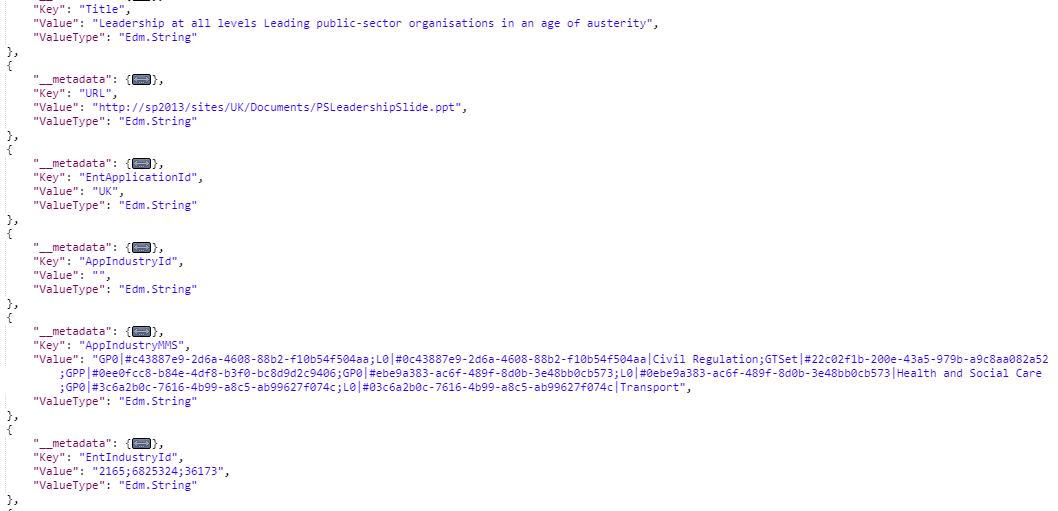
“RowCount”: 1

Meets this use case test

Use Case – Tag all enterprise content to enterprise Term Id’s and include Id’s for each taxonomy level. Tag to the enterprise standard and ensure that every Id which is in a taxonomy path is present. This will facilitate the new filtering approach in the user experience.

SQL Content Source – Everything that can be done with the SharePoint content can be done with non-SharePoint content.

8. Confirming that Enterprise Application Id tagging is occurring

Query for ‘EntApplicationId:Employee’ to show success
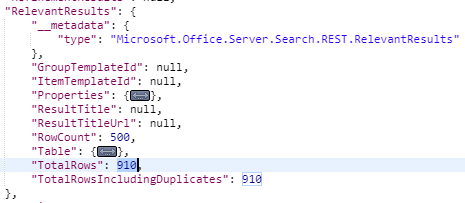
“RowCount”: 910

9. Tagging taxonomy by TermId – Mapping Application TermId to Enterprise TermId Look at Title:”Bob Gage” – [6] -> Energy Resources and Industrials [2109]

Query for ‘EntApplicationId:Employee Bob Gage’ to show success
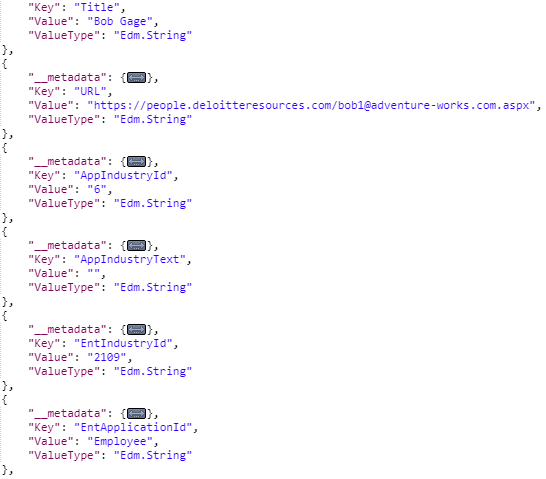
“RowCount”: 1

10. Tagging taxonomy by Text when TermId is not present – Mapping Application Text to Enterprise TermId Look at Title:”Steve Masters” – Life Sciences -> Life Sciences [2126]

Query for ‘EntApplicationId:Employee Steve Masters’ to show success
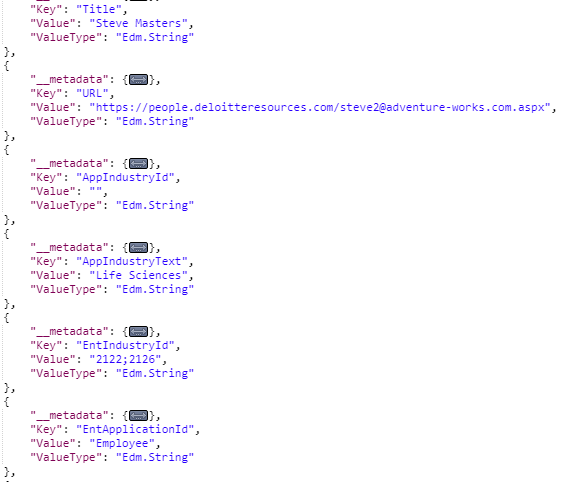
“RowCount”: 1

Meets this use case test

Use Case – Tag content from application document taxonomy property types (TermId, Text and MMS GUID) to enterprise taxonomy. Have ability to use these data types to map to the standard enterprise Term Id.

11. Show how changing the dynamic taxonomy values is translated to documents in the index. – Change mapping between Application and Enterprise taxonomy on the US and Employee taxonomy mapping tables.
Check the document out then back in and re-crawl. 

Query for EntApplicationId:US AND Title:”U.S. Transfer Pricing Team” to show success
Was Technology[2185] –> Technology[2185]
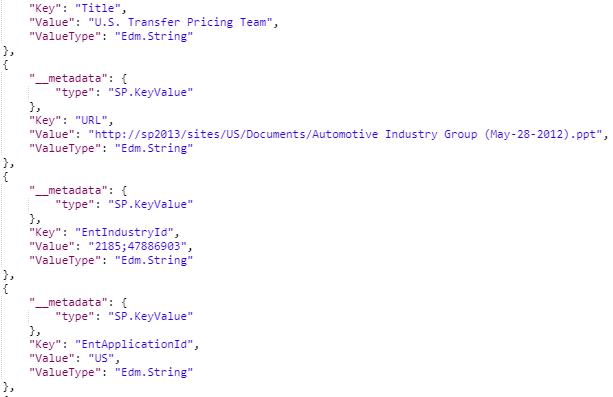
“RowCount”: 1

Now Technology[2185] –> Technology[2186]
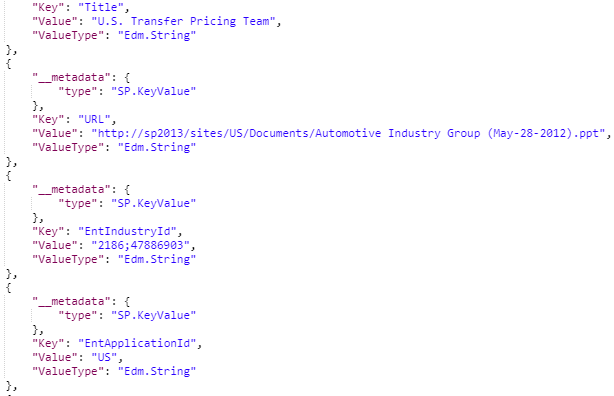
“RowCount”: 1

Meets this use case test

Use Case – Dynamically change application taxonomy or enterprise metadata and see changes in search user experience – Demonstrate the normal changes to documents and taxonomies then reflect those changes to the tagging process which in turn tag those changes on the appropriate documents.

Troubleshooting Tips

Reset the SPSearchHostController Service to ensure changes are applies to the SharePoint CEWS endpoint

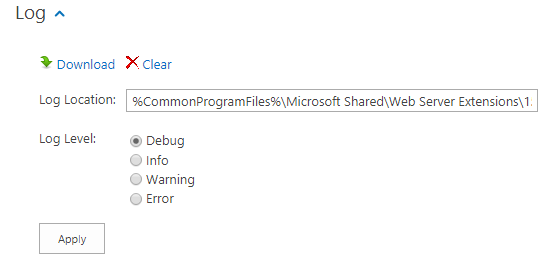
Reviewed Smart Pipeline logs to ensure tagging is occurring correctly

  • Set to Debug log level

Logs are at: C:\Program Files\Common Files\microsoft shared\Web Server Extensions\15\LOGS\SmartPipeline

Export and import pipeline and pipeline stages using the export and import tools

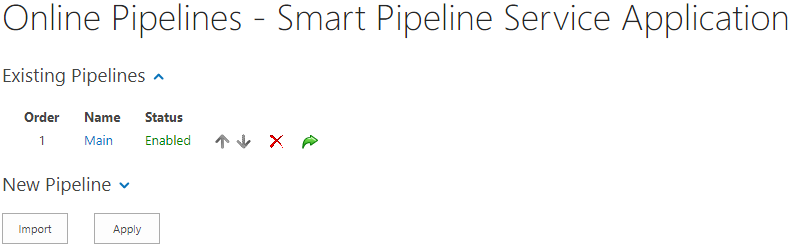
  • Pipeline – Use the green arrow to export a pipeline to a file and the Import button to import a pipeline file.
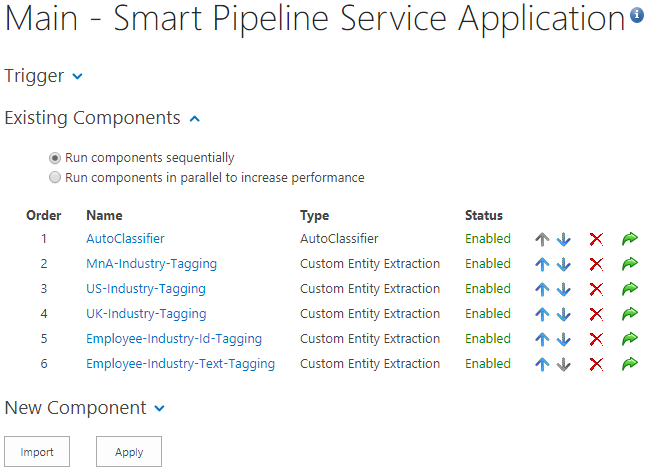
  • Stages – Use the green arrow to export a stage to a file and the Import button to import a stage file.
That’s it, thanks for sticking with me this series. See you next time!

Enterprise Metadata Tagging – The Implementation

January 19, 2019January 19, 2019 Bob Bachand3 Comments

This is the third of four blog posts about how we implemented a complex metadata mapping strategy within our enterprise. I was inspired to write these posts to help others use BA Insight metadata tagging products with SharePoint and SQL content. The internet does not have much out there to help people like us walk through real world scenarios on how these tools work together to create a desired solution.

Series of posts describing the Enterprise Metadata Tagging project:

  • Enterprise Metadata Tagging – The Requirements
  • Enterprise Metadata Tagging – The Setup
  • Enterprise Metadata Tagging – The Implementation [This one]
  • Enterprise Metadata Tagging – The Demo

This post will concentrate on how to implement this prototype solution using BA Insight tools. We will look at the configuration and implementation of the static taxonomy values using Smart Pipeline and AutoClassifier. Then we will check out how to create the dynamic taxonomy value configuration using Smart Pipeline and Custom Entity Extraction components. Lets walk through this prototype BA Insight implementation.

Component View

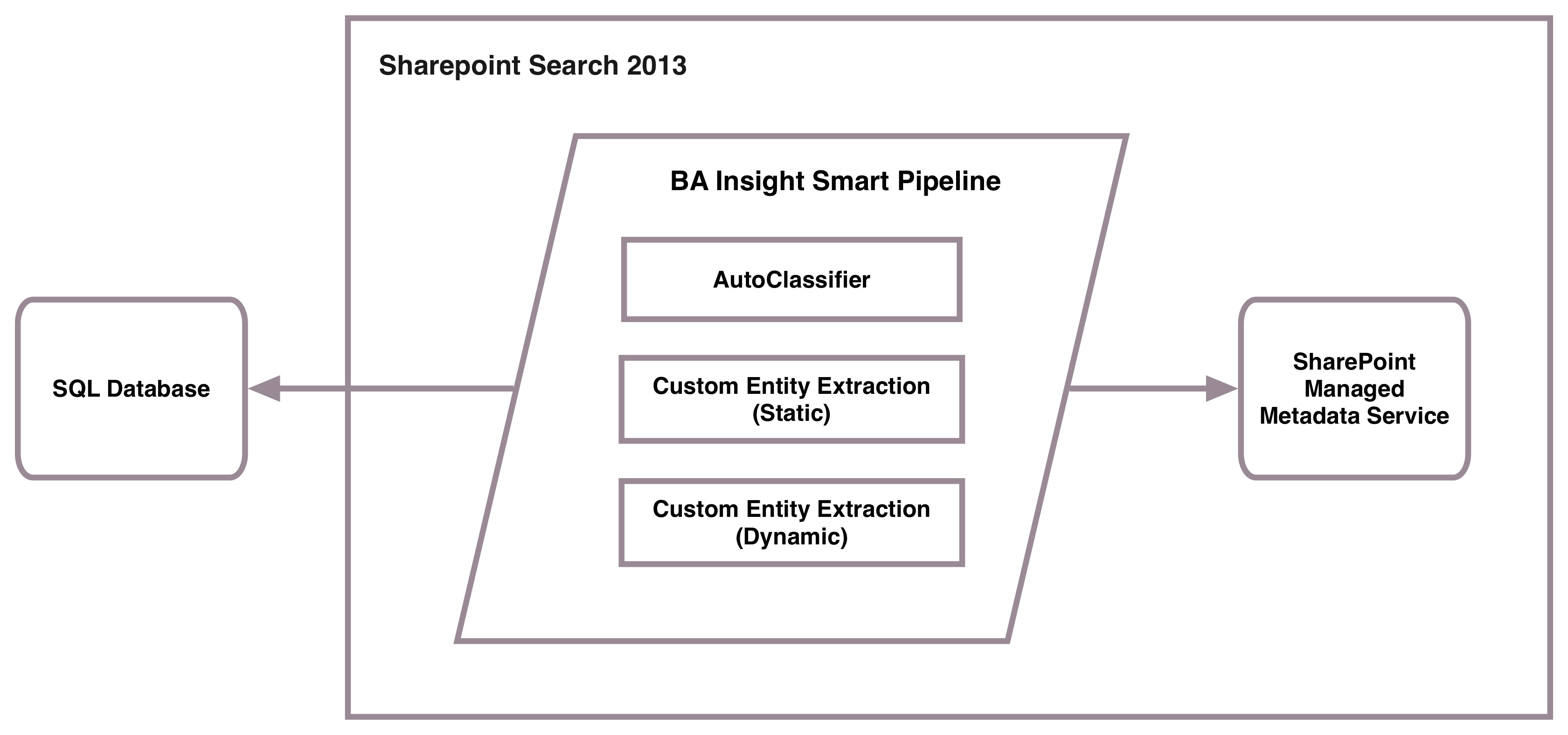
The Smart Pipeline components used in this protoype are: AutoClassifier (static) and static/dynamic Custom Entity Extraction. AutoClassifier used SharePoint MMS and Custom Entity Extraction using SQL for metadata.

Static Taxonomy Implementation

Browse to configure BA Insight AutoClassifier Service Application from Manage Service Applications list

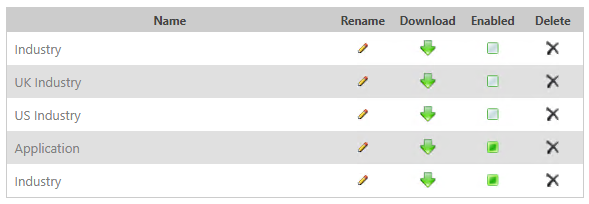
Manage Taxonomies page

The top three taxonomies are used by each SharePoint application and the Application and Industry taxonomies which are enabled are used in the static tagging process. Clicking on each one of these we get:

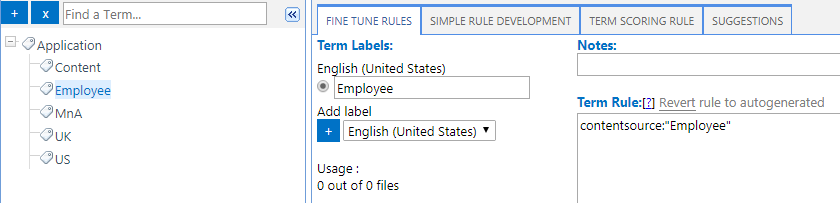
Application taxonomy

Content content source configuration – If the content source is “Content” and the path/url is not “mergers and acquisitions” then tag the application as “Content”.

MnA content source configuration- If the content source is “Content” and the path/url is “mergers and acquisitions” then tag the application as “MnA”.

The Employee, UK and US application taxonomies return the corresponding name when the contentsource property matches the application name.

Industry taxonomy

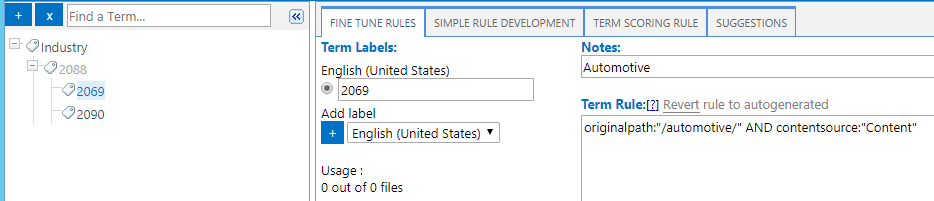
Industry tagging configuration – If documents within the “content” contentsource have “/automotive/” in the path they will be tagged with the 2069 industry term Id

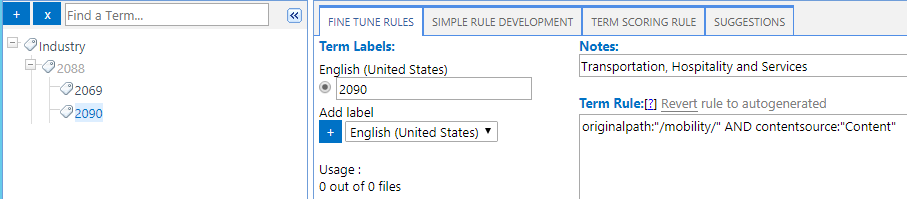
Industry tagging configuration – If documents within the “content” contentsource have “/mobility/” in the path they will be tagged with the 2069 industry term Id

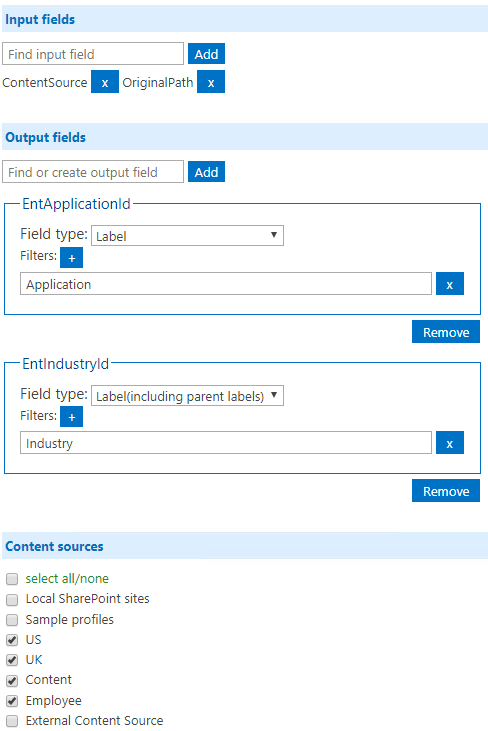
AutoClassifier Content Enrichment Service Configuration

This is the place where you configure the BA Insight AutoClassifier to work with CEWS and the Smart Pipeline

Input fields

  • ContentSource – Field used in the AutoClassifier taxonomy term rule configuration
  • OriginalPath – Field used in the AutoClassifier taxonomy term rule configuration

Output fields

  • EntApplicationId – Property to tag the term rules to. Filter to only tag from the Application taxonomy.
  • EntIndustryId – Property to tag the term rules to. Filter to only tag from the Industry taxonomy. Also added “including parent labels” to the Field type in order to ensure that the taxonomy full path is tagged to that property.

Content sources

  • Select all sources that you want the AutoClassifier to be executed with.

Dynamic Taxonomy Implementation

Browse to configure Smart Pipeline Service Application from Manage Service Applications list

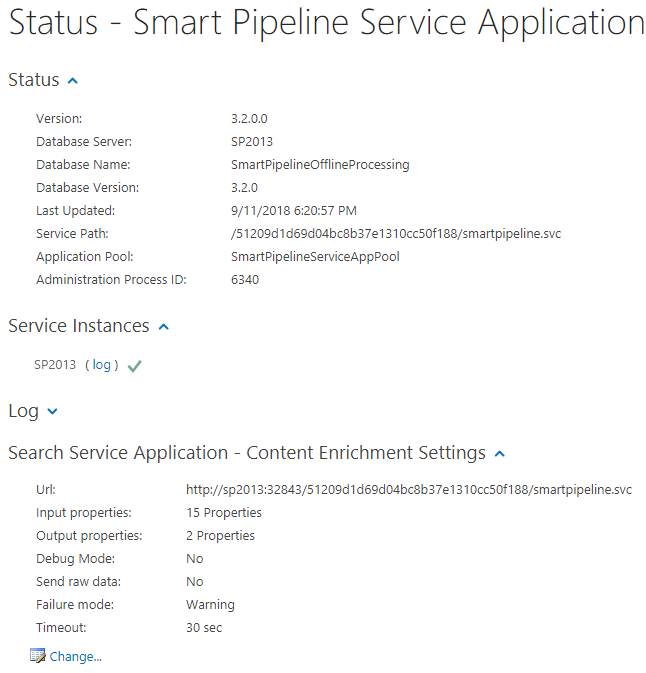
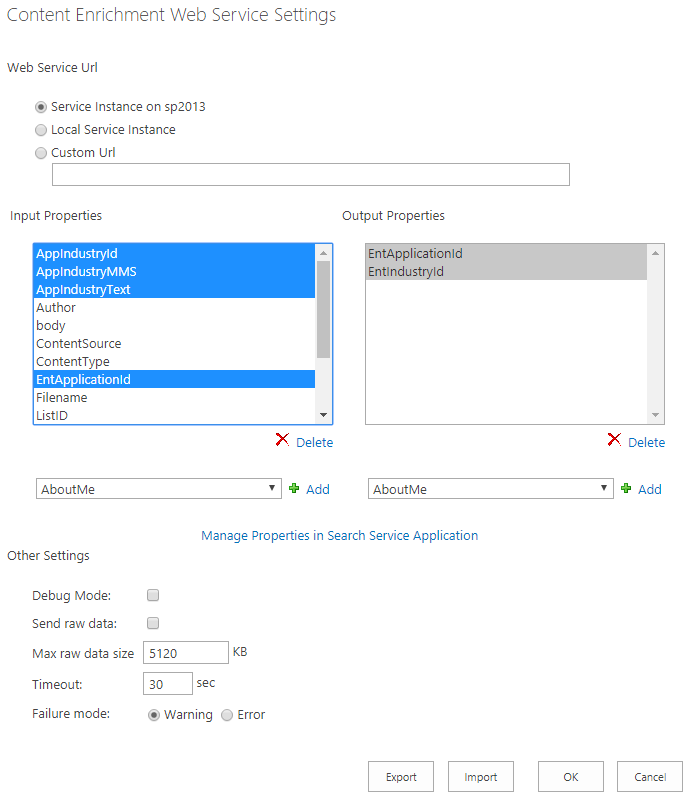
If not already there go to the Status page open “Search Service Application – Content Enrichment Settings” area and click on “Change” as shown below:

Add the following input and output properties in the popup as shown below:

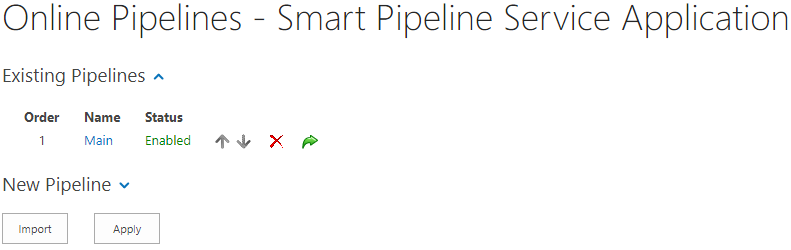
Go to “Online Pipelines” page and add an online pipeline if not already there. Ensure that it is enabled.

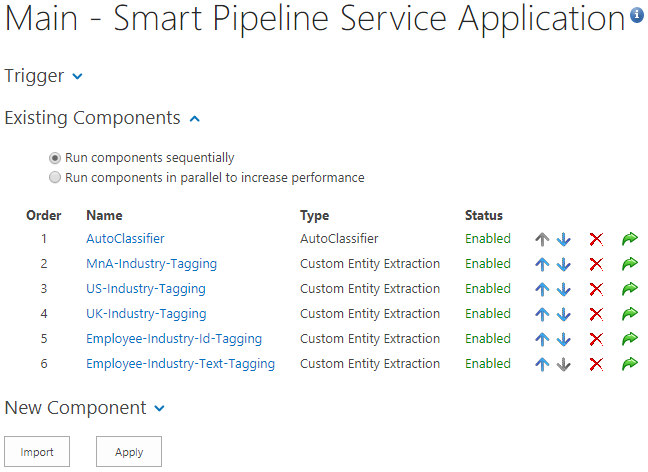
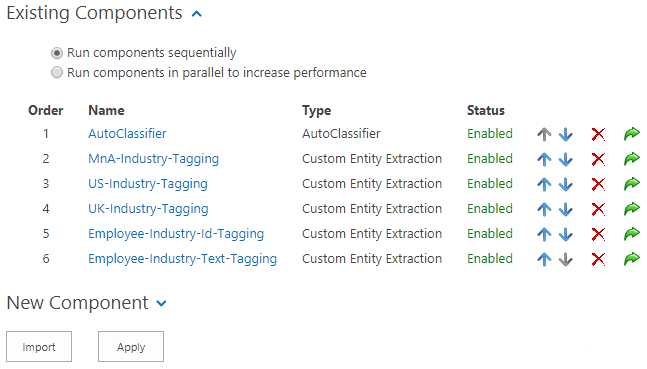
Click on the pipeline get to that pipeline component page like below. The final set of components are in this list and we will go through the addition and configuration of each now.

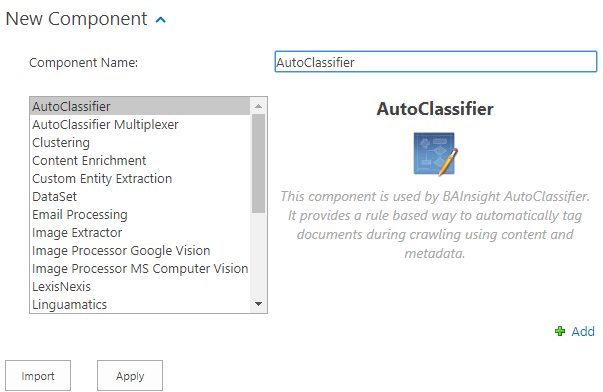
Add a new AutoClassifier component – Click on “New Component”, Select “AutoClassifier” in the list, give the component a name, click “Add” then “Apply”.

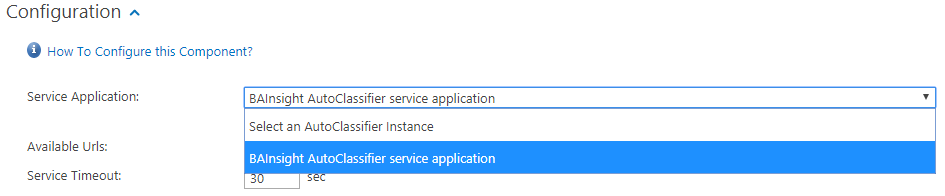
Click on the new AutoClassifier component to configure. Select the “BAInsight AutoClassifier” service application that we configured in a prior step then click “Apply”.

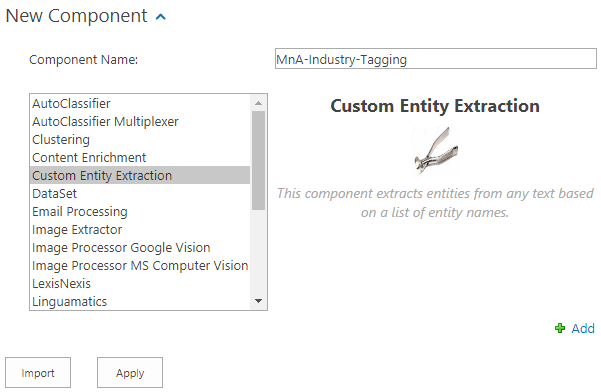
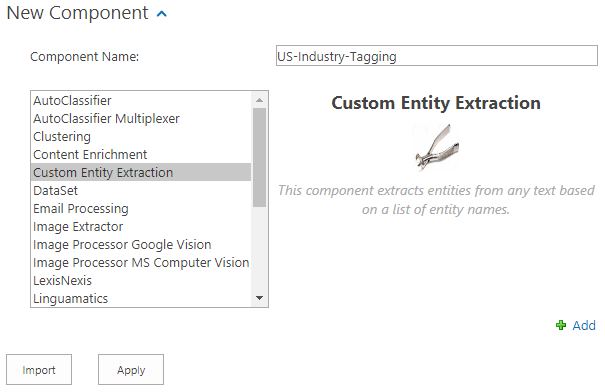
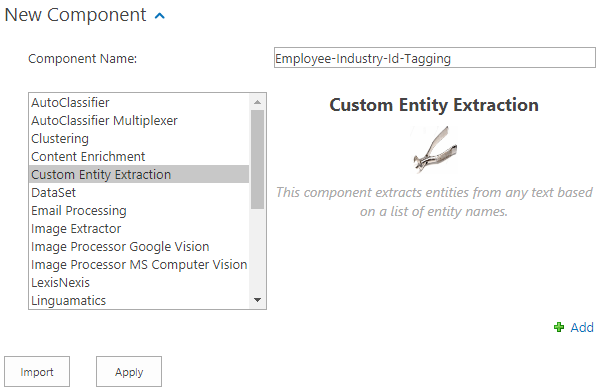
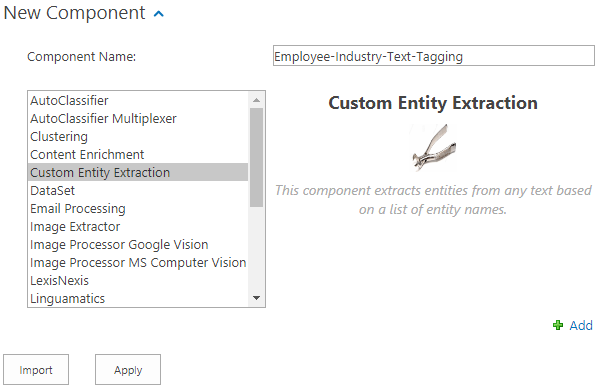
Add a new Custom Entity Extraction component – Click on “New Component”, Select “Custom Entity Extraction” in the list, give the component the next name from the component list in the initial step, click “Add” then “Apply”.

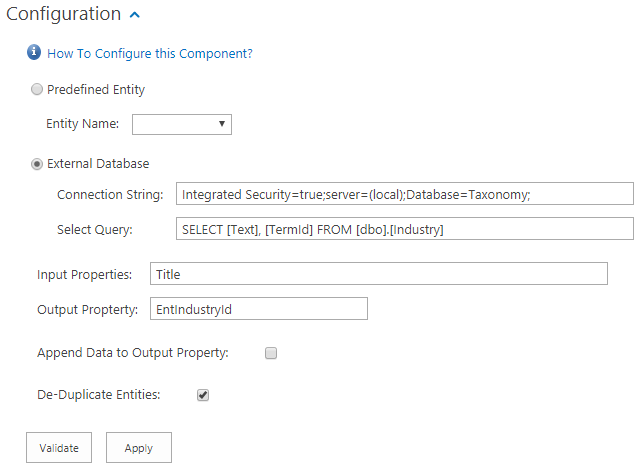
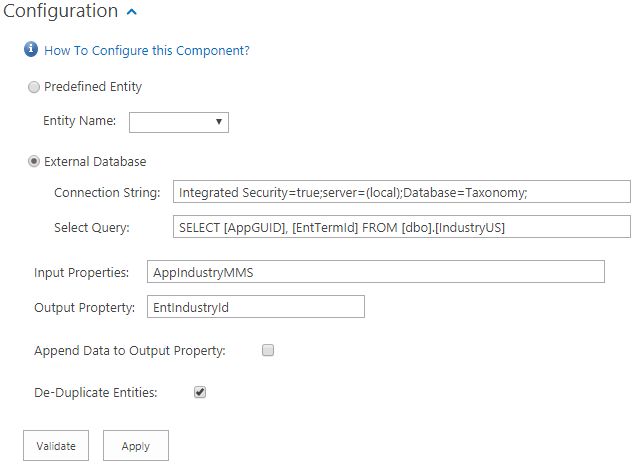
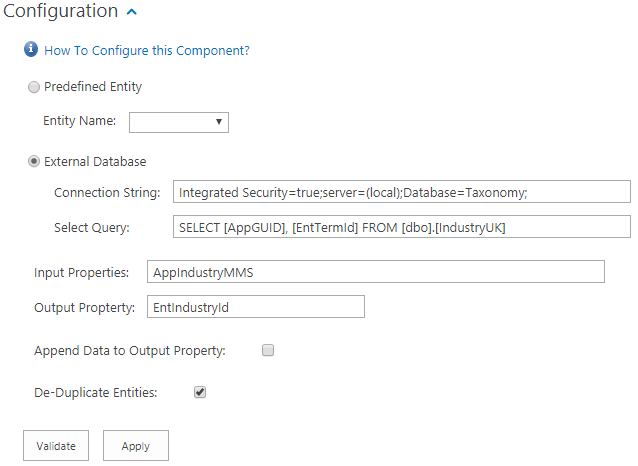
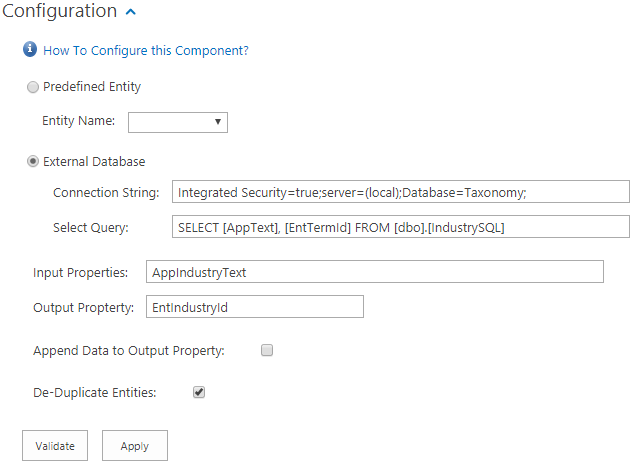
Click on the new Custom Entity Extraction component to configure. Click on the “Configuration” area and add the “External Database” info as described below:

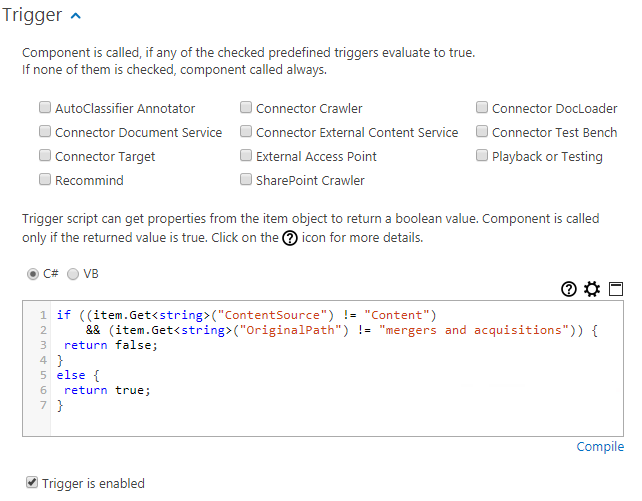
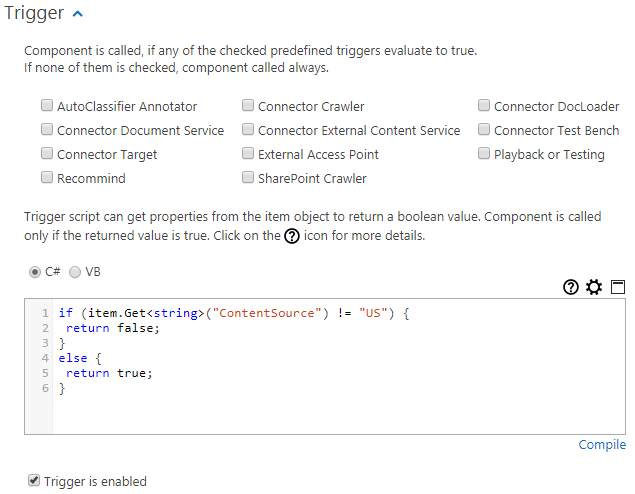
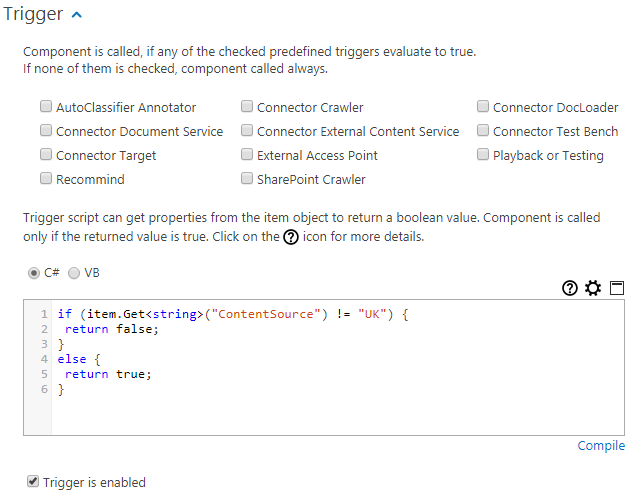
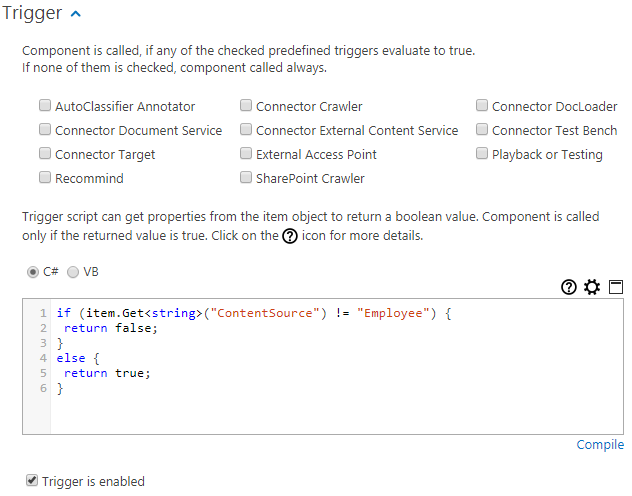
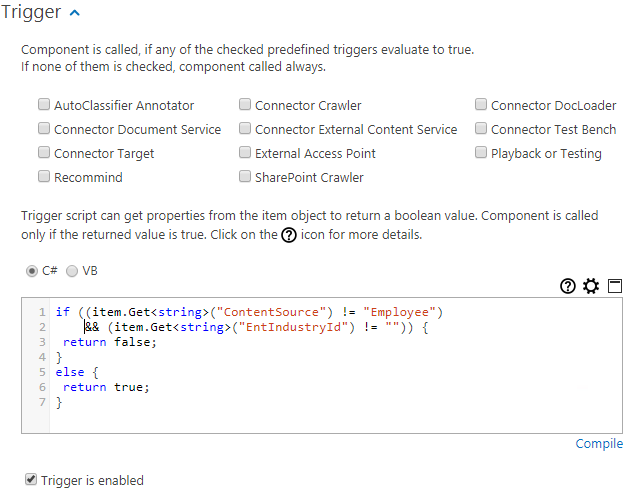
Click on the “Trigger” area, add the C# script and enable the trigger as described below:

Click “Apply” to save the component configuration.

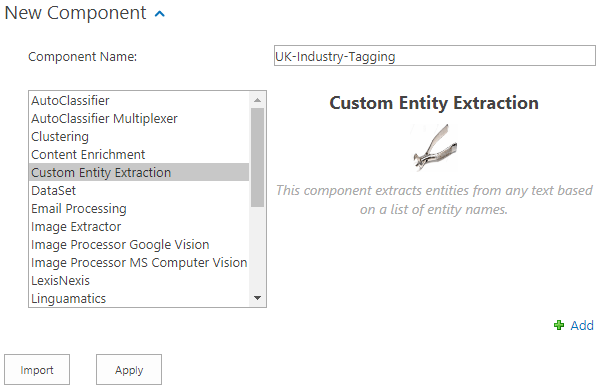
Add a new Custom Entity Extraction component – Click on “New Component”, Select “Custom Entity Extraction” in the list, give the component the next name from the component list in the initial step, click “Add” then “Apply”.

Click on the new Custom Entity Extraction component to configure. Click on the “Configuration” area and add the “External Database” info as described below:

Click on the “Trigger” area, add the C# script and enable the trigger as described below:

Click “Apply” to save the component configuration.

Add a new Custom Entity Extraction component – Click on “New Component”, Select “Custom Entity Extraction” in the list, give the component the next name from the component list in the initial step, click “Add” then “Apply”.

Click on the new Custom Entity Extraction component to configure. Click on the “Configuration” area and add the “External Database” info as described below:

Click on the “Trigger” area, add the C# script and enable the trigger as described below:

Click “Apply” to save the component configuration.

Add a new Custom Entity Extraction component – Click on “New Component”, Select “Custom Entity Extraction” in the list, give the component the next name from the component list in the initial step, click “Add” then “Apply”.

Click on the new Custom Entity Extraction component to configure. Click on the “Configuration” area and add the “External Database” info as described below:

Click on the “Trigger” area, add the C# script and enable the trigger as described below:

Click “Apply” to save the component configuration.

Add a new Custom Entity Extraction component – Click on “New Component”, Select “Custom Entity Extraction” in the list, give the component the next name from the component list in the initial step, click “Add” then “Apply”.

Click on the new Custom Entity Extraction component to configure. Click on the “Configuration” area and add the “External Database” info as described below:

Click on the “Trigger” area, add the C# script and enable the trigger as described below:

Click “Apply” to save the component configuration.

Click on the “Apply” button to complete the implementation!

Next we will go through the content source crawls, some troubleshoot tips and the demo to prove that all of these steps worked.

Next post in this series:

Enterprise Metadata Tagging – The Demo

Recent Posts

  • Enterprise Metadata Tagging – Demo
  • Enterprise Metadata Tagging – The Implementation
  • Enterprise Metadata Tagging – The Setup
  • Enterprise Metadata Tagging – The Requirements

Archives

  • January 2019
  • November 2018

Categories

  • Enterprise Search
  • Metadata
  • Taxonomy

Meta

  • Create account
  • Log in
  • Entries feed
  • Comments feed
  • WordPress.com
Blog at WordPress.com.
Back to top
  • Subscribe Subscribed
    • Searching for Bob
    • Already have a WordPress.com account? Log in now.
    • Searching for Bob
    • Subscribe Subscribed
    • Sign up
    • Log in
    • Report this content
    • View site in Reader
    • Manage subscriptions
    • Collapse this bar
 

Loading Comments...